

WP SMS offers great automation features on WordPress-based triggers. However, sometimes you need to have more control over your SMS workflows and connect your apps and services with WordPress messages.
In this case, you can easily connect Zapier to automate your SMS workflows and connect it to other platforms like Gmail, Google Sheets, and Slack.
In this blog post, we’ll let you know how you can integrate WordPress SMS and Zapier and automate your workflow messaging.
What Is Zapier?
Zapier is one of the best automation platforms that connects your favorite apps without coding.
It actually connects WordPress and other apps and services and lets data flow automatically between them.
Every automation in Zapier is called a “Zap,” which contains two important items:
- Trigger: Something that happens
- Action: What you want to happen next
For example, when you publish a new post on your site (trigger), Zapier can automatically send an SMS notification to your subscribers (action). The good news is that Zapier can log the event in Google Sheets.
Zapier adds great scalability to your SMS workflow because it can integrate with over 6,000 apps, such as:
- Slack
- Google Sheets
- WooCommerce
- Mailchimp
- Twilio
This means that your WordPress site can become part of a digital ecosystem if you integrate Zapier into your workflow.
Why Automate Your WordPress SMS Workflows Using Zapier?
Here are the benefits of integrating WordPress SMS with Zapier:
- Saving Time: Zapier connects WordPress to other platforms and automatically sends messages for different actions. So, it can reduce repetitive manual work and save you time.
- Accuracy and Consistency: Human-made mistakes are a big concern in workspaces, especially in communication. Automated SMS workflows prevent errors, like missed messages, duplicates, or typos.
- Boosting Engagement: When your customers receive instant, timely SMS updates, they feel you’re working on their orders/requests. This will improve user experience and the engagement rate.
- Scalability: Using Zapier, your WordPress site can trigger SMS and also update workflows in other apps, like CRMs, Slack, and Google Sheets.
- Higher ROI: Automation lets you handle lots of tasks, like targeted campaigns, reminders, and alerts, without additional employees. This is really impactful in your expenses and helps you reach a high ROI.
The Best Solutions to Integrate Zapier into WordPress SMS Workflows
Here are the best ways to use Zapier in WordPress SMS workflows:
1. Integrate WP SMS with Zapier
The WP SMS plugin is one of the most advanced SMS tools for WordPress websites. In fact, it allows you to send bulk traditional and promotional messages directly from your dashboard.
It supports 350+ SMS gateways, such as Twilio, Nexmo, and Clickatell, and connects with useful platforms, like Zapier, Fluent CRM, and WooCommerce.
So, it gives you almost everything you need to have an automated messaging platform without having to switch to any third-party tools.
It’s great for businesses of all sizes and types, especially eCommerce and appointment-based businesses.
When you integrate WP SMS and Zapier, your site becomes an event-based communication machine that can handle thousands of routine communications automatically.
Here is a quick comparison between using Zapier and WP SMS separately or together:
| Capability | WP SMS | WP SMS + Zapier | Zapier |
| Send SMS from WordPress | ✅ | ✅ | ❌ |
| Use WordPress hooks/triggers. | ✅ | ✅ | ⚠️ Limited |
| Store/manage SMS templates | ✅ | ✅ | ❌ |
| Connect multiple SMS gateways. | ✅ | ✅ | ❌ |
| Automation | ⚠️ Limited triggers | ✅ | ✅ |
| Workflow Steps | Single-step | Multi-step | Multi-step |
| Integration Range | SMS gateways | 6,000+ apps | 6,000+ apps |
| Trigger SMS from WordPress-only events | ✅ | ✅ | ⚠️ Limited |
2. Connect WordPress to Zapier via Webhooks
Although using a plugin is the easiest way to use Zapier, some users might want complete flexibility or custom event triggers.
In this case, they have to use webhooks to connect WordPress directly to Zapier. This is a developer-friendly way to send real-time data from your WordPress site to Zapier.
A webhook will send the message whenever a specific event occurs. Then, Zapier will process that data and execute the action.
This method is usually used by developers, agencies, or advanced users who want to manage multiple WordPress sites.
3. Build Custom API Connections
Last but not least, tech-savvy businesses and enterprises can create their own API connection. This gives them total control over WordPress and Zapier connections and unlocks limitless possibilities.
Using this way, developers can leverage WordPress REST API or custom hooks to send or receive data between WordPress and Zapier. This method needs technical expertise but provides enterprise-level automation and scalability.
Every method above empowers you to automate WordPress SMS workflows effectively—the right choice depends on your goals:
The following table compares these methods to let you choose the best way for your business:
| Integration Method | Ease of Use | Cost | Compatibility | Maintenance | Security |
| WP SMS + Zapier | Very Easy | Plugin + SMS fees | High (major plugins) | Low | Standard / SSL secure |
| Webhooks Integration | Moderate | Zapier plan only | Flexible (custom) | Medium | Token + HTTPS secure |
| Custom API Integration | Complex | Dev + gateway fees | Full (custom systems) | High | API auth + SSL required |
Integrate WP SMS and Zapier to Automate SMS Workflows
Now, let’s learn how to integrate Zapier into your WP SMS dashboard to automate your SMS workflows.
Here is a step-by-step guide:
Step 1: Install & Activate Your WP SMS Plugin
You can easily install WP SMS on your WordPress website and configure a suitable SMS gateway on it.
You just need to go to Plugins > Add Plugin and search for WP SMS and install it. Then, activate the plugin and go to Settings to choose your SMS gateway and add its credentials to configure it.
Step 2: Set Up Your Zapier Account
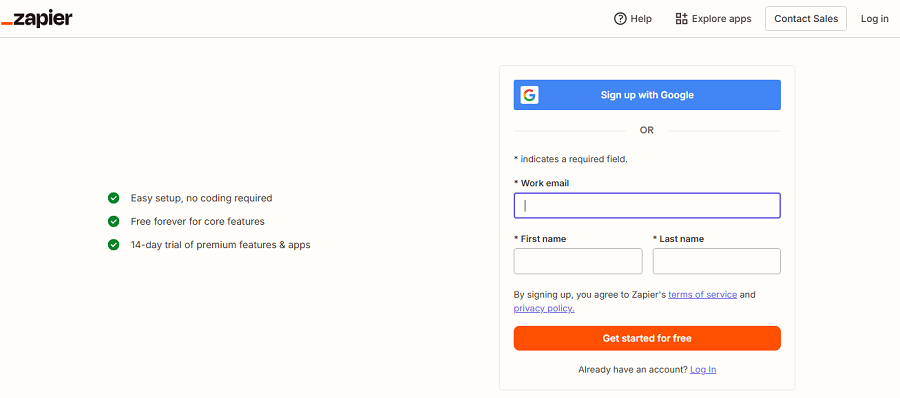
Go to zapier.com and create or log in to your account. On Zapier, go to your dashboard and click “Create Zap” to start a new automation. Now, you can use Zapier to connect your site’s events to SMS actions on WP SMS.
Step 3: Choose the Right Integration
Zapier allows you to connect WP SMS to many other apps, like Gmail, Google Sheets, etc.
Here is a list of some integrations you can choose on your WP SMS dashboard:
| Integration Pair | Trigger Source | Use Case |
| Gmail + WP SMS | New Gmail email | Get instant SMS alerts when new emails arrive |
| Google Sheets + WP SMS | New row in sheet | Send SMS updates automatically when rows are added |
| Google Sheets + WP SMS | New row (Team Drive) | Add new subscribers from spreadsheet data |
| WP SMS + Google Sheets | New WP SMS subscriber | Sync SMS subscribers into a sheet for tracking |
| WP SMS + Slack | New WP SMS subscriber | Notify your team on Slack when new subscribers join |
| Google Calendar + WP SMS | New calendar event | Send event reminders by text |
Step 4: Choose the Triggers and Actions
After choosing your desired apps for integration, you have to select the triggers and actions. For example, if you want to automate your SMS workflows for Gmail, you can choose the following triggers and actions:
| Trigger Name | What It Detects |
| New Attachment | When a new file is received in an email |
| New Labeled Conversation | When a label is added to a conversation (first time only) |
| New Email | When a new email arrives in a chosen mailbox |
| New Starred Email | When you start a new email (within 2 days) |
| New Label | When a new Gmail label is created |
| New Labeled Email | When an email is labeled or a labeled thread gets a reply |
| New Email Matching Search | When an email matches a custom search query |
| New Conversation | When a completely new conversation starts |
To choose each trigger, you have to click “Try It” under each option.
Step 5: Connect WP SMS to Zapier
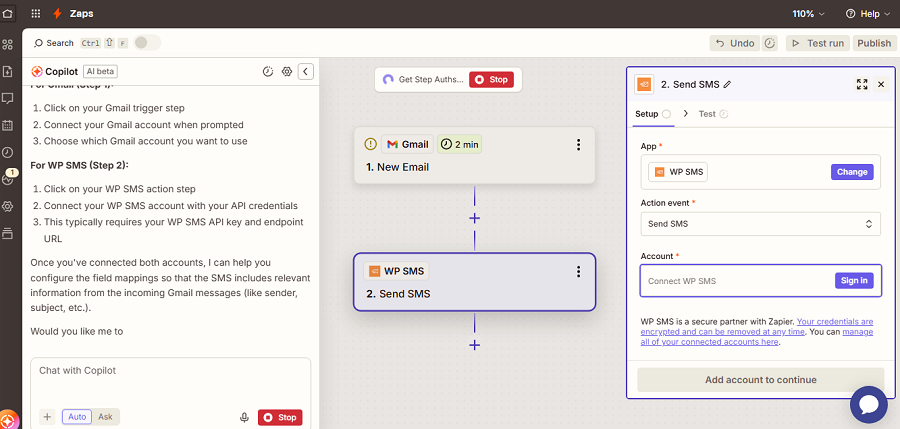
In your Zap editor, click WP SMS and then add your account to connect your Zapier account to your WP SMS dashboard.
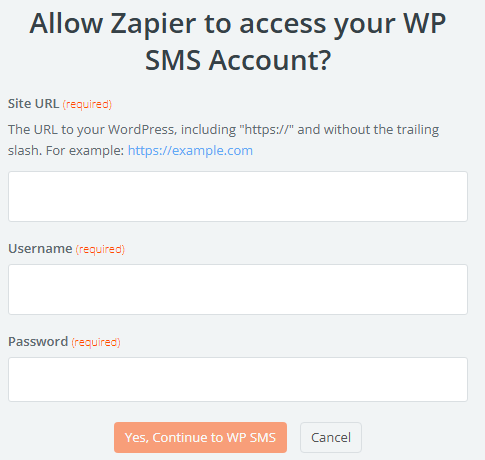
A pop-up will appear asking for your Credentials:
Step 6: Customize Your SMS Message
Now, Zapier will let you customize the text content of your automated message.
Use dynamic data fields to personalize your message templates:
“Hi {{Name}}, your new form submission has been received!”
You can include details, like:
- Customer names
- Order IDs
- Form values
Step 7: Test Your Automation
Before publishing your automation, you have to test your SMS workflow to make sure it’s working correctly.
Click “Test Run” in the upper right corner to simulate the trigger. For instance, it might detect a sample email or a sample Google Sheet row, and then send a test SMS message through WP SMS. Now, check your phone to make sure the test message arrives successfully.
Step 8: Publish Your Zap & Monitor
Click “Publish” in the upper right corner to make your Zap online. Then, you can go to Zapier’s Task History to track every automation run.
For a more detailed guide, please read Integrate with Zapier.
Final Thoughts
Zapier is one of the best automation tools with the ability to connect thousands of apps. Businesses looking to combine SMS campaigns with social media strategies can leverage AI LinkedIn Content tools to maximize reach and engagement.
If you integrate it with an SMS plugin on WordPress, you can automate messages after important events on your WordPress sites and connect useful platforms like Gmail, Google Sheets, Slack, etc.
You can easily connect these two tools and enjoy a fully automated SMS workflow in your business, and reduce workload at an affordable cost. If you need more information on Zapier integration with WP SMS, you can contact our support team.
FAQs
Can I send SMS with Zapier?
Yes! You can connect Zapier with an SMS plugin like WP SMS to send messages automatically. Of course, you need an SMS gateway like Twilio to connect your system to a mobile carrier.
How to integrate the SMS API in WordPress WooCommerce?
You just need to install WP SMS on your WordPress dashboard. It offers integrations with lots of useful platforms, especially WooCommerce. WP SMS supports 350+ SMS API providers, like Twilio and ClickSend. So, you can automate WooCommerce messaging using WP SMS and send messages through SMS gateways.
How to integrate Zapier with WordPress?
First, install the WP SMS on your WordPress site. Then, go to Integrations under WP SMS in your dashboard and click on Zapier. Then, create an account on Zapier and make a Zap. Then, connect your WP SMS account to your Zap.
Does Twilio integrate with Zapier?
Yes! You can integrate Twilio with Zapier and send SMS messages, make calls, or add new contacts on different apps, like Gmail, Slack, and Google Sheets.