


You can text a PDF without having to use email. Thanks to new advancements, SMS apps are now capable of sending more complex content than simple words.
You can now use MMS and RCS features in text messaging tools on smartphones to send files like images, GIFs, and PDFs.
Also, some SMS gateways allow you to attach files to your business messages if you use the right SMS platform.
Read the following blog post to learn how to use SMS to send a PDF file.
How to Text a PDF on iPhone
Apple’s Messages app allows you to send PDFs via SMS/MMS. The process might vary in different iOS versions, but it’s like the following steps:
Step 1: Open the iMessages App
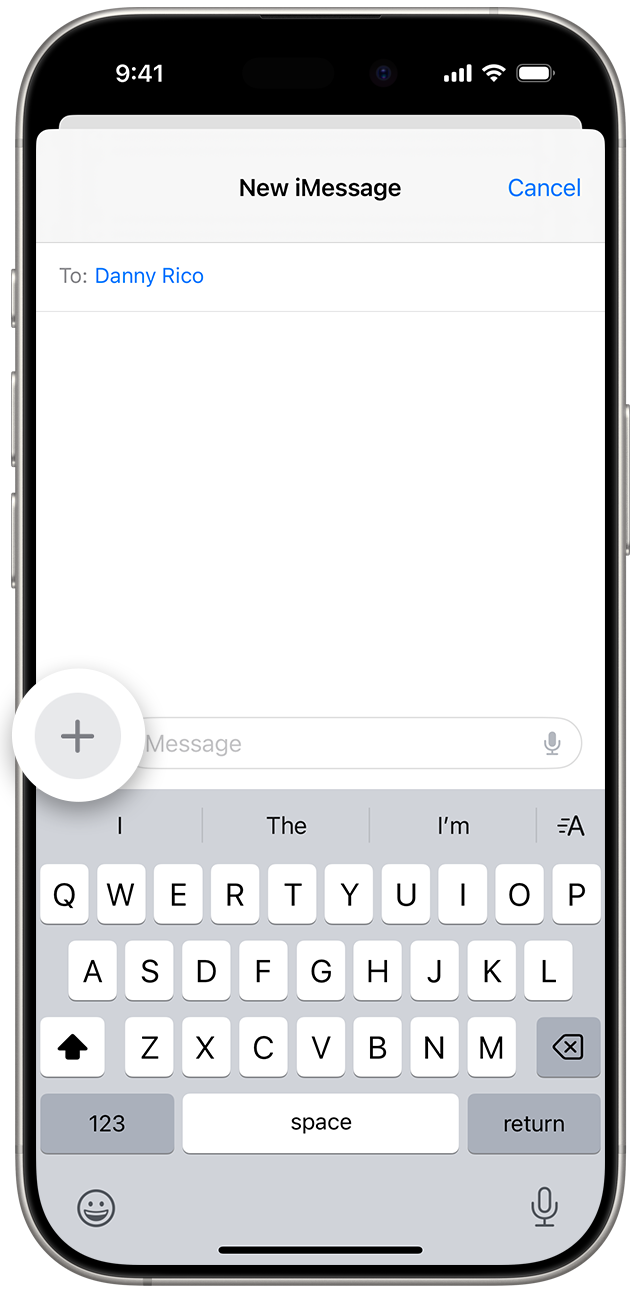
Launch the Messages app on your iPhone and start a new conversation or choose a previous chat.
Step 2: Attach the PDF
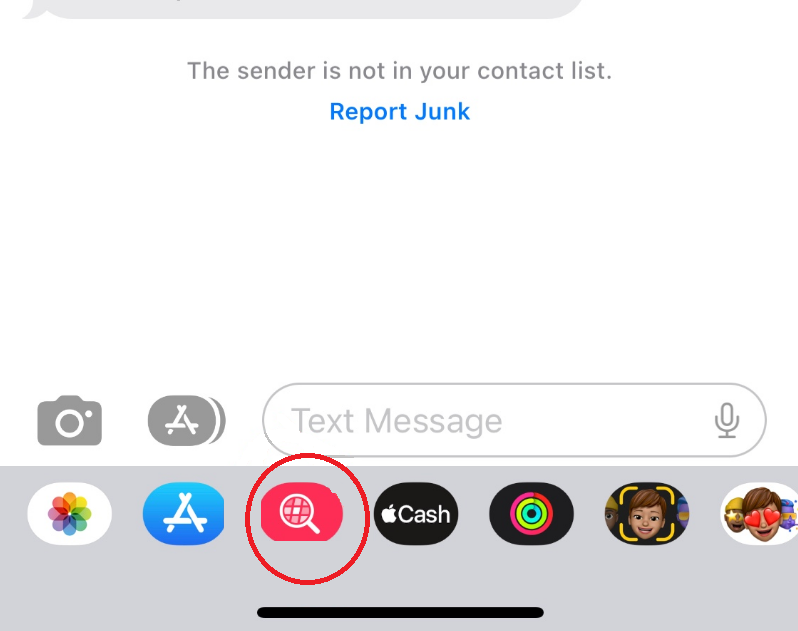
Tap the + icon, or the App Store icon, depending on your iOS version. It’s usually next to the text input field.
Now, tap Files or Browse from the menu. If you don’t see this option, tap More to find it. You need to locate your PDF on your device by browsing iCloud Drive, My iPhone storage, or other connected apps, like Dropbox or Google Drive. When you find the document, tap the PDF to attach it to your message.
Step 3: Send the File
When the PDF is attached in the message thread, you have to tap the Send button. It’s usually a blue or green arrow. Then, your iPhone will send the PDF as an MMS.
How to Send a PDF Using SMS on Android
You can attach a PDF to an SMS message on Android using your messaging app. The process of sending PDFs using text messages might vary depending on your device, but it’s usually like the steps below:
Step 1: Open Your Messaging App
Launch your messaging app. Most Android devices use Google Messages, but some may use their own SMS app, such as Samsung Messages.
Step 2: Start a New Conversation
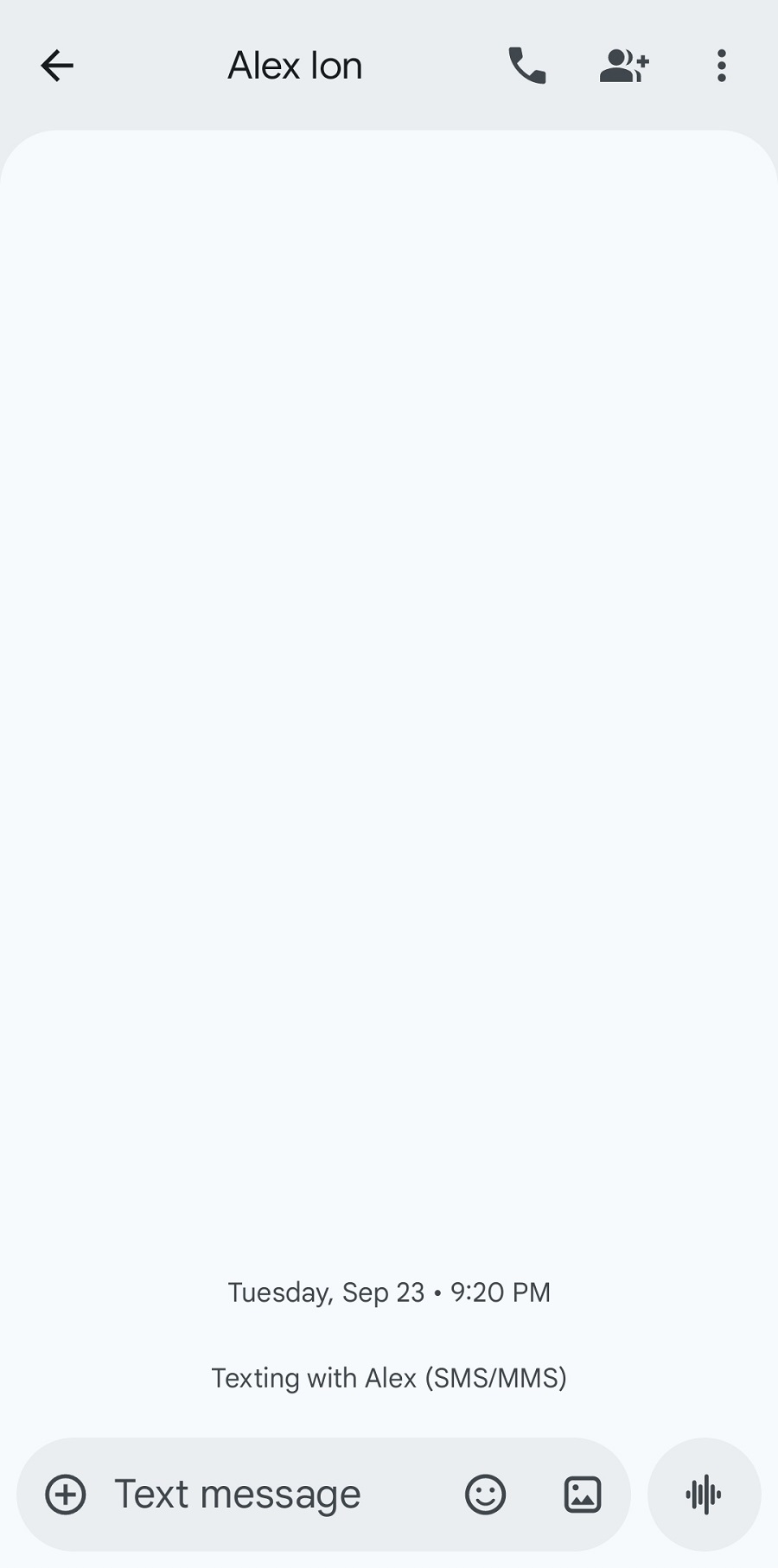
Tap the New Message icon, which is usually a chat bubble. Then, select a contact or enter the recipient’s phone number.
You can also open a previous conversation from the list of messages instead of creating a new one.
Step 3: Attach the PDF
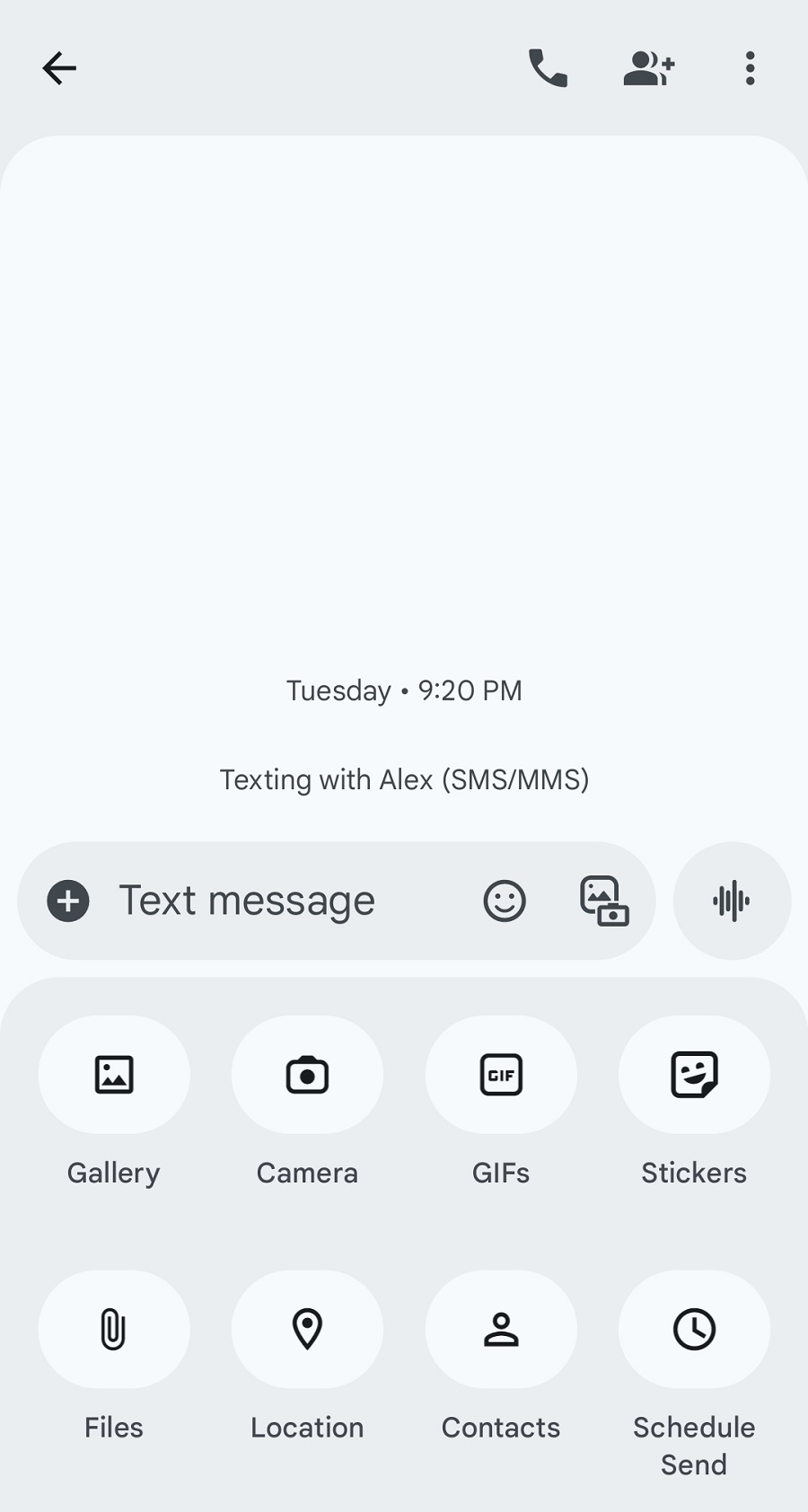
Tap the attachment icon, which is typically a “+” icon. Then, you have to choose the type of attachment. PDFs are usually categorized as Files and are shown as a paperclip symbol.
Now, you can select your document from your device storage and confirm the selection to attach the file.
Step 4: Send the Message
Add your text and review the message to make sure everything is OK. Then, tap Send to deliver the PDF as an MMS.
Text a PDF Using Programmable SMS Marketing Platforms
As a business, you can improve your services by sending PDFs through SMS. Look at the following business use cases for texting PDFs:
1. Sending Invoices & Receipts
You can send invoices as PDFs over payment confirmation SMS to make sure customers receive billing details immediately. This way, you’ll show a professional image of your business and offer an alternative to paper invoices.
2. Contracts and Legal Documents
If you need quick approvals, you’d better learn how to send contracts via SMS PDF. Your customers receive the file directly on their mobile devices. So, they can digitally sign it and resend it to you to simplify the deal.
3. Marketing Campaigns
ِYou can send a PDF with SMS marketing campaigns to provide details, like product catalogs, menus, event brochures, or promotional offers. So, your customers do not need to go to your website to check the details.
4. Customer Support Using SMS with PDF Files
PDFs can help you provide and document customer support using SMS. In fact, you can list the services, guides, workflows, etc. in a PDF and send it via SMS so that your customers get familiar with the details.
5. Healthcare and Compliance
In regulated industries, like healthcare, you might have difficulties in sharing details because you have to ensure compliance.
For example, when you want to send medical forms, prescriptions, or appointment details, you need HIPAA-compliant SMS document sharing. PDF text messaging can enhance patient experience without violating compliance.
6. Education and Training
If you’re running educational institutions, you can send a PDF link in SMS to share timetables, course materials, or study guides.
Step-by-Step Guide to Sending a PDF over a Business SMS
It’s obvious that you can’t manually send PDF SMSs using your phone when it comes to bulk messaging.
Fortunately, some SMS platforms, like WP SMS, let you send PDFs over SMS programmatically.
Here is how:
- Choose an SMS Gateway: You can use SMS gateways such as Twilio, Plivo, and MessageBird that support MMS. They allow you to attach PDFs directly or provide a secure download link.
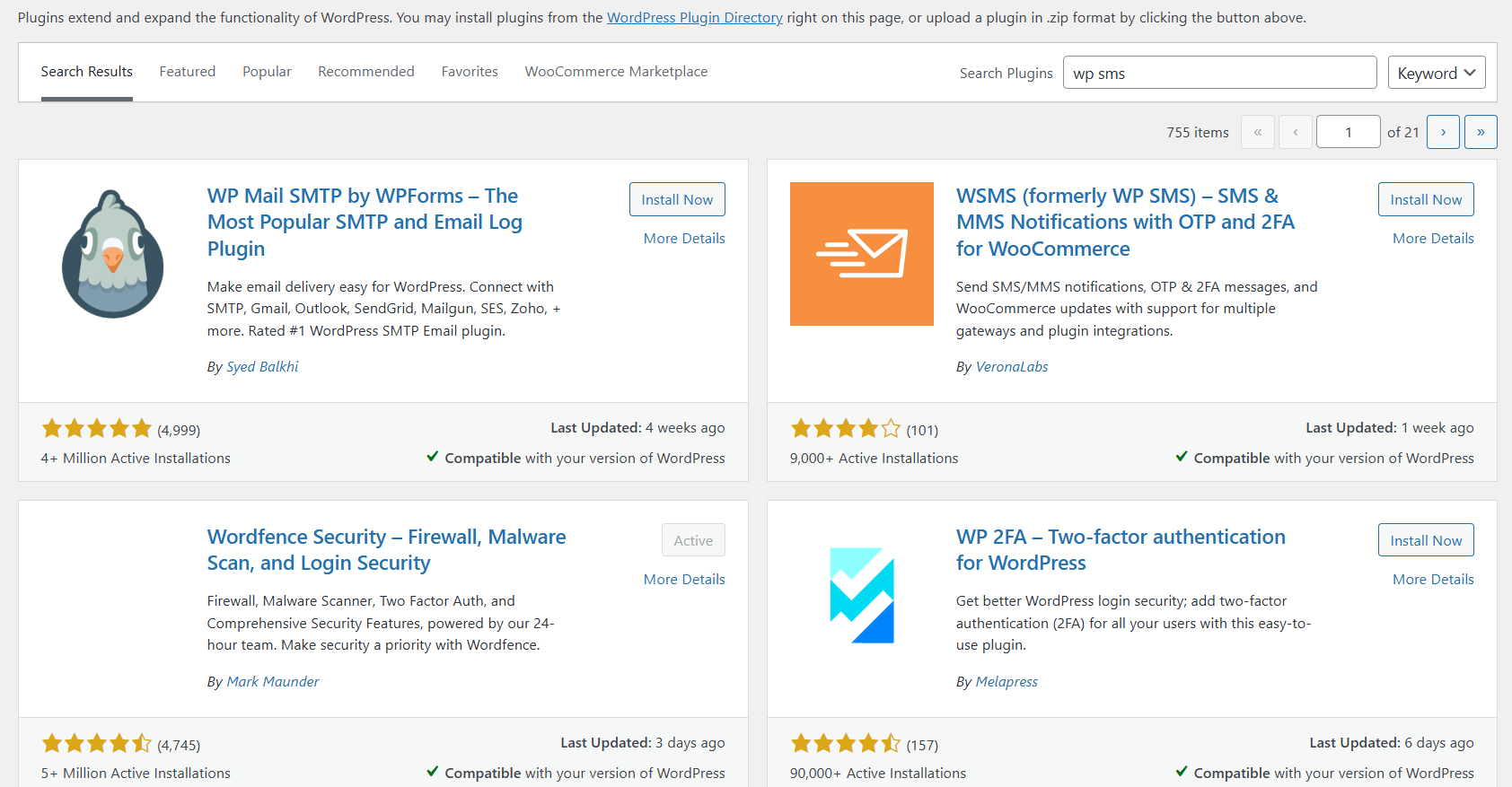
- Install WP SMS: If you have a WordPress website, you can install the WP SMS plugin. After installation, you can integrate the SMS gateway and configure your business SMS platform.
- Create a Message: Go to the left side menu in your WordPress dashboard. Then, click SMS and write your message.
- Upload PDFs: If you have used an SMS gateway with MMS support, you can see an option for uploading media. In this step, you can upload PDFs and send them or schedule them to be sent later.
Moreover, WP SMS integrates well with URL shorteners to help you share the link to your PDFs via SMS. So, if you can’t use an SMS gateway with MMS support, you can use this option.
Limitations of Texting PDFs
Unfortunately, sending PDFs over text messages has some limitations. You need to consider the following factors when you want to send a PDF using SMS:
- File Size Limits: Many carriers restrict MMS to between 300 KB and 1.5 MB. So, you can’t send PDFs with lots of images.
- Compression Issues: Some mobile carriers automatically compress or block larger PDFs. This way, the recipient can’t read it.
- SMS vs MMS for PDF Files: You have to enable MMs on your mobile. Otherwise, you have to share a link to your PDF using SMS.
- Device Compatibility: Old mobile phones don’t support PDFs.
- Delivery Failures: Unsupported formats can cause failed delivery.
Different carriers and SMS gateways have various limitations. Look at the following table to understand the differences:
| Carrier / Gateway | Max File Size (MMS/PDF) | Notes |
| AT&T (US) | ~600 KB | Works best under 500 KB. Larger files may fail. |
| Verizon (US) | ~1.2 MB | Can handle bigger files, but compression is often applied. |
| T-Mobile (US) | ~1 MB | Recommended under 900 KB for consistent delivery. |
| Twilio Gateway | 600 KB recommended | Files above 600 KB may not deliver reliably. |
| Plivo Gateway | 600 KB recommended | Smaller files are more consistent across carriers. |
| MessageBird | 1 MB (varies by region) | Limits depend on local carriers. |
| Nexmo (Vonage) | SMS-only (no MMS) | Can only send PDF links, not attachments. |
Conclusion
You can send a PDF using MMS or share its link via SMS. This helps you send more information to your recipients. Tools like WP SMS help you send PDFs directly from your website to improve your customer service.
Remember that you have to use an SMS gateway that supports MMS. Otherwise, you have to send a link to your PDFs.
Of course, if you see the link is too lengthy, you can shorten it to make it look better in your text message. If you need more information about sending PDFs for your business, you can contact our team at WP SMS.
FAQs
Can I send a PDF through SMS?
Not directly. Standard SMS only supports text. You need MMS or a link to the PDF.
How do I send a PDF to a mobile number?
Use email, messaging apps (WhatsApp, Messenger), or MMS if supported.
How to send a PDF via SMS on iPhone?
Attach the PDF in the Messages app if your carrier supports MMS, or send a link via iMessage.
Why can’t I send a file through SMS?
SMS only sends text. Files require MMS, email, or messaging apps.